How to Scan Handwritten Notes to Text With Your Phone Camera (No Extra App Needed)
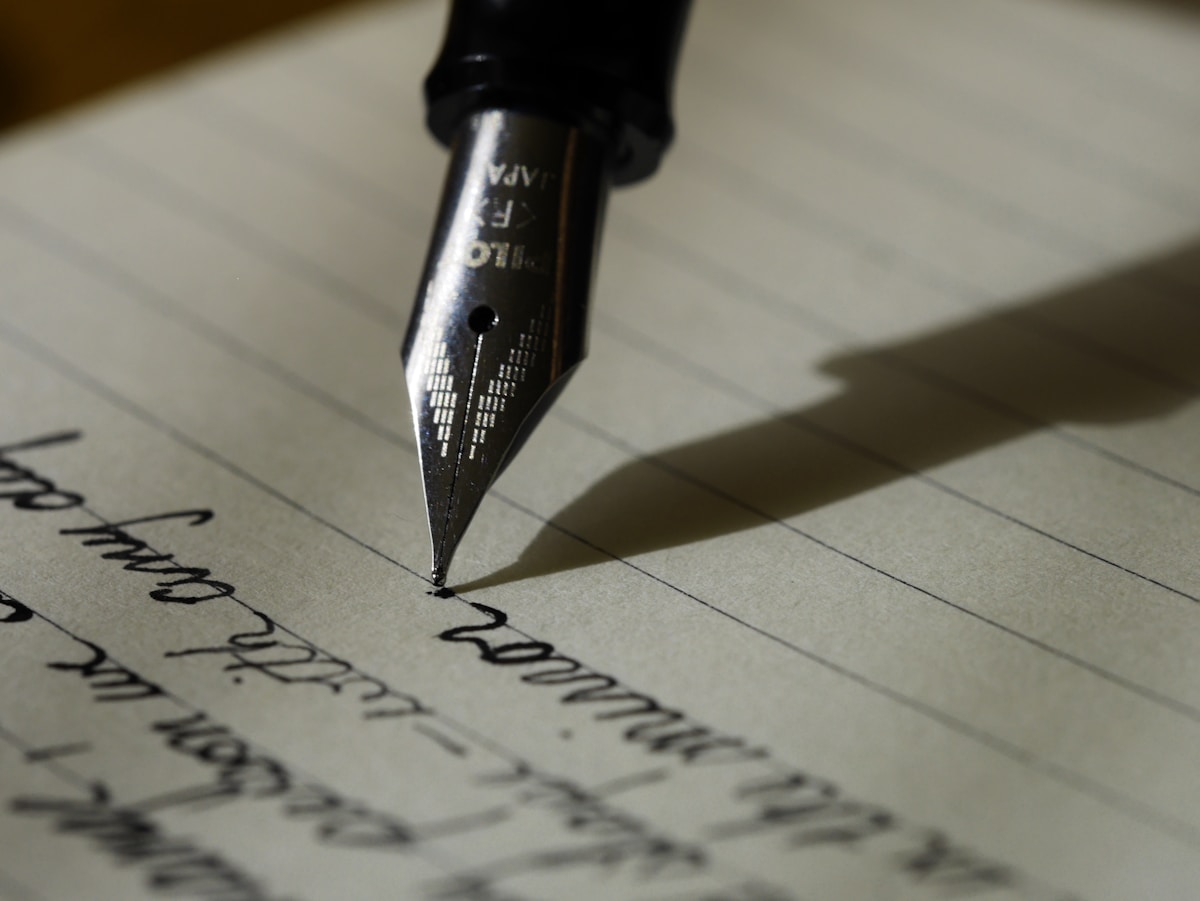
- Primary Signal: How to Scan Handwritten Notes to Text With Your Phone Camera (No Extra App Needed)
- Overview: Photographing notes is not digitising them. This guide shows how to use your phone's built-in text recognition to turn handwriting into searchable, editable text on iPhone and Andr...
- Verification: Analyzed and compiled by SkyFree Chronicles editorial monitoring desk.
Most people photograph their handwritten notes and stop there, leaving a camera roll full of blurry pages they can never search. That is duplication, not digitisation. Real digitisation means turning handwriting into text you can search, edit, and copy, and your phone can already do it without any extra app. Modern phones have optical character recognition built into the operating system, so the camera and the notes app together can convert a page of handwriting into editable text in under a minute.
Recognition quality starts with the photo, not the software. Lay the page flat in good natural light, avoid shadows from your hand or body, and hold the phone steady about a foot above the page with the whole page in frame. If your notes app has a scan documents mode, use it: it finds the page edges, straightens the image, and boosts contrast automatically. For multi-page notes, scan each page in order so the text stays in sequence. A clean, well-lit capture is the single biggest factor in getting accurate results, and it matters more than which app you use.
On an iPhone, open the Notes app and create a new note, then tap the camera icon and choose Scan Documents. Capture the page, adjust the corners so only the handwriting is framed, and tap Keep Scan. Then tap the scanned image and look for the text recognition option, which makes the handwriting selectable. You can also use the Scan Text option directly from the camera menu: point the camera at the handwriting, wait for the text to be recognised, and tap Insert to drop it into your note. Either route gives you editable text in seconds, with no account and no upload.
On Android, Google Lens and Google Keep cover the same job. Open Lens, point the camera at the page, and tap the text option to select and copy recognised words. Or open Keep, add a photo of the note, and use the grab image text option to convert the image into editable text. Dedicated scanner apps with handwriting support exist for both platforms if you want batch scanning or export to Word and PDF, but for most people the built-in tools are enough. The key advantage of the built-in route is privacy: on-device recognition means your notes never leave your phone.
No handwriting recognition is perfect, especially with fast cursive or unusual abbreviations. Read through the extracted text and fix the errors you spot, paying attention to lookalike characters, names, and numbers, which matter most. Keep the original photo alongside the text, so you can always check a doubtful word against what you actually wrote. Then organise the result: give the note a clear title and date, add a tag or two for the project it belongs to, and file it where you will actually find it again. A searchable archive only helps if the search leads somewhere.
Neat printing and careful handwriting convert very well, and most people are surprised by how much of their notes come through cleanly. Messy cursive, overlapping corrections, and writing in poor light are harder, and the results will need more editing. Mixed content like diagrams, arrows, and margin doodles will not convert into text at all, so keep the photo for those parts. If a page converts badly, try recapturing it in better light or splitting it into smaller sections rather than blaming the tool. And remember that handwriting recognition is a transcription aid, not a replacement for your notes: the photo remains the original record.
The payoff comes over time. Once your notes are text, you can search for a name, a date, or a project across months of notebooks in seconds, copy a passage into an email without retyping it, and back up your thinking without a filing cabinet. Start with one notebook and one page, get the workflow smooth, and then work through the pile. Your future self, searching for that one idea from three months ago, will be glad you did.
📖 Continue Reading the Full Story
Continue reading this article on SkyFree Chronicles.
⚡ Access Full Content NowMore from SkyFree Chronicles


 💎 LuxeLiving 768
How to Check DNS Records of a Domain: A Beginner's Guide
Checking a domain's DNS records takes under a minute once you know the tools. This guide covers online lookup ...
 ⚡ CyberTech 568
How to Write Better Prompts for AI Image Generation: A Beginner's Guide
Good AI images start with specific prompts. Learn to describe subject, style, lighting and composition so the ...
 🎮 GameVault 668
Best Budget Mechanical Keyboards Under $50 for Gaming in 2026
You no longer need to spend a fortune for a solid mechanical gaming keyboard. These sub-$50 picks deliver hot-...
 🏆 2026 Football Online
How VAR and Semi-Automated Offside Will Work at World Cup 2026
World Cup 2026 will use video review and semi-automated offside technology. Here is what VAR can and cannot ch...